

How to Organize Google Drive for Business: The Ultimate Founder's Guide
When you started your business, your goal was to build a powerful brand, not to spend your days chasing tasks, searching for scattered files, or trying to remember where you saved last month's client agreement.
Yet, for many online business owners, important documents are scattered across downloads, Gmail, WhatsApp, and desktop folders.
If you want to scale your operations, build a reliable team, and prepare your business for growth, learning how to organize Google Drive for business is your essential first step. Building organized digital systems is a prerequisite for successful outsourcing; read our operational guide on when to hire a virtual assistant versus building systems first to protect your business from hiring too earlyThis guide provides a step-by-step blueprint to build a clean "Business HQ" folder structure and organize client files so you can find any document in seconds
Why should online founders stop keeping business files in their memory?
To protect your business from operational bottlenecks, you must stop keeping your file directory, client details, and workflows in your memory. Transitioning from mental tracking to an organized Google Drive directory ensures that you don't waste hours searching for files, repeating administrative tasks, or confusing your virtual assistants when delegating work.
Doing everything yourself might feel cheap, but it carries a massive hidden cost in lost focus, delayed projects, and missed follow-ups.
According to search engine data, the average professional spends up to 1.8 hours every single day (or roughly 9 hours per week) just searching for and gathering scattered information. When you build a centralized digital workspace, you instantly reclaim this lost time and reduce the cognitive friction of running your backend.
How do I structure my Google Drive folders for business operations?
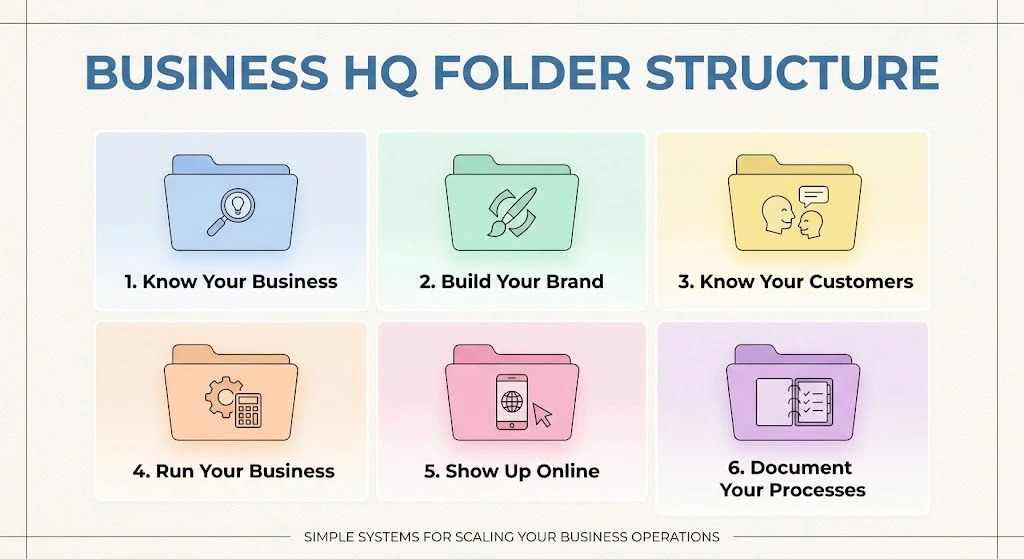
To structure your Google Drive folders for business operations, organize all documents into six standardized root directories: Know Your Business, Build Your Brand, Know Your Customers, Run Your Business, Show Up Online, and Document Your Processes. Keeping these six distinct folders at the top level of your workspace ensures every file has a dedicated home.
 [My Business] HQ
  ├── 📂 1. Know Your Business (Core Overviews, Vision, & Strategy)
  ├── 📂 2. Build Your Brand (Logos, Style Guides, & Fonts)
  ├── 📂 3. Know Your Customers (CRM Trackers, Client Portals)
  ├── 📂 4. Run Your Business (Financials, Administrative Files)
  ├── 📂 5. Show Up Online (Marketing, Social Media, YouTube Assets)
  └── 📂 6. Document Your Processes (Checklists, SOPs, Standard Playbooks) [26]
This structural framework forms your Business HQ.
By separating your business files into these logical buckets, you stop creating random folders and keep your file structure completely stable over time:
- Know Your Business: This is the brain of your company. It holds your high-level business plans, core offers, annual goals, and your signature
- Business Overview—the foundational Google Doc that defines who you are, what you offer, and who you serve.
- Build Your Brand: Your central vault for brand assets. Store your official logos, color hex codes, font files, and brand style guides here so your marketing always remains consistent.
- Know Your Customers: Dedicated to lead tracking, client questionnaires, and testimonials.
- Run Your Business: The home for backend administrative files, tax documents, bookkeeping sheets, and vendor contracts.
- Show Up Online: Organize your active marketing campaigns, email newsletter copies, and video assets.
- Document Your Processes: This is your SOP Library. It stores step-by-step checklists, standard operating procedures, and guides that outline exactly "how we do things here".
What subfolders should I create inside a client directory?
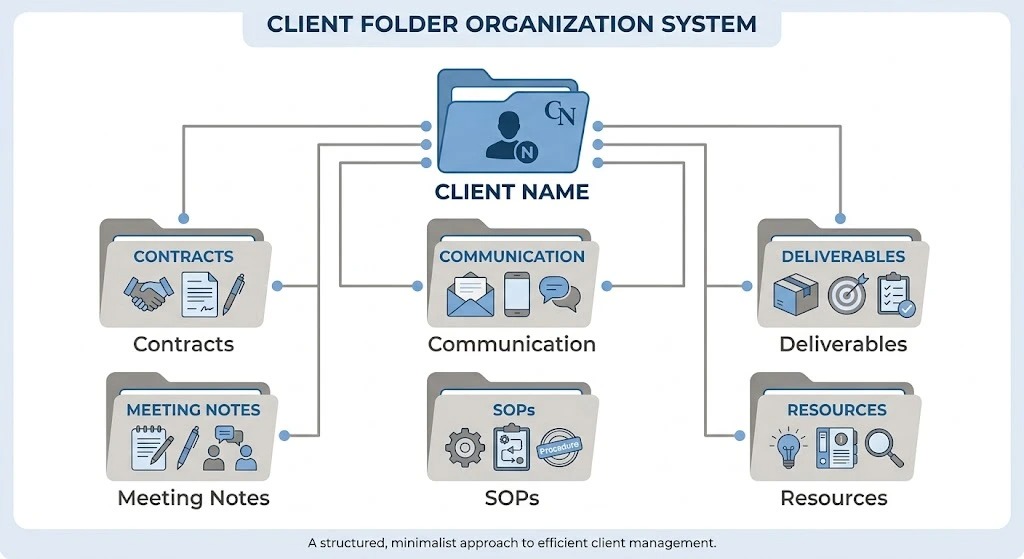
Within your main client directory, create six standardized subfolders for each client: Contracts, Client Communication, Deliverables, Meeting Notes, SOPs, and Resources. Standardizing this specific folder structure across every client profile ensures that both you and your team can locate client documents instantly.
  ├──📁 Client Folder (Standardized Structure)
  ├── 📁 1. Contracts (Signed agreements, intake forms, proposals)
  ├── 📁 2. Client Communication (Project updates, email templates)
  ├── 📁 3. Deliverables (Final work, active templates, and drafts)
  ├── 📁 4. Meeting Notes (Agendas, video recordings, action items)
  ├── 📁 5. SOPs (Custom steps developed specifically for this account)
  └── 📁 6. Resources (Branding assets and materials provided by the client) [17]
When you use a loose, unstructured naming system, finding an onboarded client's file can take several frustrating minutes. By locking down these subfolders, you build an efficient and highly repeatable client experience.
When a client asks for a document from several months ago, you don't have to search your email or WhatsApp messages. You simply open their folder, click on the "Deliverables" or "Contracts" subfolder, and hand it over immediately.
How does organizing Google Drive improve operational efficiency and delegation?
Organizing Google Drive improves operational efficiency by creating a clear business foundation that allows team members to work independently without constant direction.
Documenting your files and folders before hiring ensures that a new assistant can step into a ready-made workspace and begin delivering value immediately. Many founders make the critical mistake of waiting until they are completely overwhelmed to hire a Virtual Assistant, only to realize they have to spend their first two weeks answering basic questions because their files are scattered.
Your first hire should never be your first system. By building a structured Business HQ inside Google Workspace, you stop managing through phone calls and voice notes.
Instead, you point your new team member to a clean folder structure and say: "Here is where everything lives". This is how delegation becomes true operational support, freeing up your time as a founder to focus on selling, building, and growing your business.Are your business files organized, or are you still keeping your business in your memory?
If you are ready to stop managing through chaos, start building your Business HQ today.
- Comment "HQ" below if you want to explore our DIY templates or customized setup support!
- Subscribe to our YouTube channel for more step-by-step business systems, Google Workspace, and AI tutorials.
Frequently Asked Questions
Q1: What is the first folder I should organize in my business Google Drive?
A: You should start by building folder "1. Know Your Business". Inside this folder, create your foundational Business Overview document. This single document defines your offers, audience, brand voice, and tech stack so that anyone joining your team can understand your business without asking you 20 questions.
Q2: How do I share folders with my virtual assistant securely?
A: Instead of sharing your entire Google Drive, share only the specific root directories your assistant needs to own (such as 3. Know Your Customers or 5. Show Up Online). Keep sensitive directories like 4. Run Your Business (containing financials and tax forms) restricted to owner-only access.
0 Comments Add a Comment?